This section gives detailed information about the various photo booth settings. If you want to get started as quickly as possible you can use the photo booth setup wizard to set everything up and then come back to this page later to find out more about tweaking the various settings.
Setting up the page layout
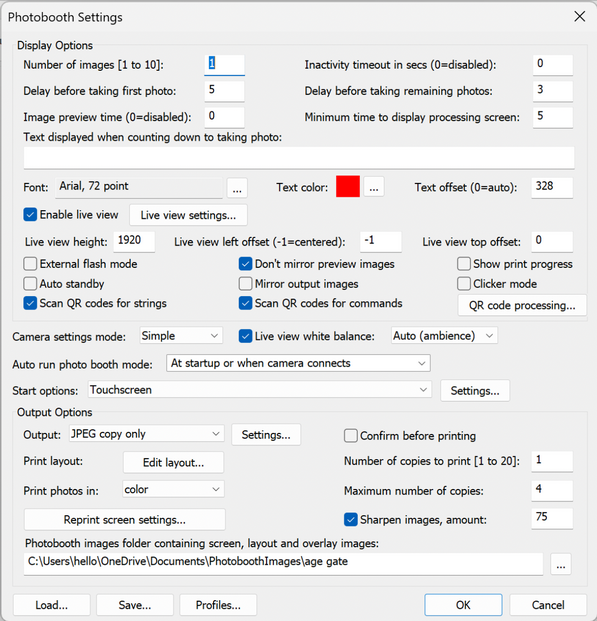
To setup photo booth operation select "Photobooth Settings..." from the File menu and the dialog below will be displayed:
First select the number of images to be taken and how they are arranged. This could be a single image on one sheet of paper (1 image, 1 row, 1 column), a passport style strip of images (e.g. 4 images, 4 rows, 1 column), 2x2 grid of 4 images as shown above or any other arrangement of up to 20 images arranged in a grid. Alternatively select "Custom layout" and click on the "Settings..." button next to the checkbox to position each image manually on the page (this is described in more detail later).
Using live view for long periods of time drains battery power and can cause the camera's sensor to heat up. Most camera models will automatically cancel live view after 30 minutes to prevent overheating. Full screen photo booth mode has an inactivity timer which will automatically cancel and restart live view after 25 minutes to prevent the camera from canceling it. Alternatively full screen photo booth mode can automatically cancel live view and display the welcome.jpg screen image if the photo booth is not used for a preset time. Live view can also be canceled manually by pressing the F6 function key. Press the F6 function key to reactivate live view and return to ready.jpg screen when the welcome.jpg screen is displayed. The inactivity timeout can be enabled by setting the "Inactivity in secs" value to the required number of seconds e.g. 120.
Next select the delay before taking each photo and how long the shot just taken is displayed on screen when shooting in full screen photo booth mode (this can be disabled by setting the time to 0). After taking each photo a preview can be displayed on the screen for a specified number of seconds (set this to 0 to disable the preview). The delay before taking the first photo can be set to a different value than that for the remaining photos. This is useful when using a touchscreen as it means a longer delay can be set before the first photo to give people time to move back from the touchscreen. When the "Minimum duration in seconds before closing 'processing' screen is set to 0 the 'processing' screen will be close as soon as the data has been sent to the printer. The 'processing' screen can be displayed for longer by adjusting this value. This is useful if you want to keep displaying a message such as "Thank you! Your photos are being printed, please leave the booth now" for longer than it takes to print the images.
The countdown text is displayed before shooting each image and is updated every second. The following tokens can be used: @imageNumber@ - the shot number in the photo booth sequence @numberOfImages@ - the number of images in the photo booth seconds @secsToNextPhoto@ - the number of seconds until the next photo in the sequence is taken
Select "Enable live view for full screen photo booth shooting" to display live view images in the full screen photo booth shooting mode. The live view image can be mirrored so that the user sees the image the same way round as when looking in a mirror. By default preview images displayed after taking each photo are displayed the correct way round (i.e. not mirrored). Use the height setting to resize the live view images. The live view image can be displayed in portrait orientation by selecting one of the portrait orientations from the View menu in the main window.
A preview can be shown after taking each photo. To enable this set the "Image preview time" to the time in seconds the preview should be displayed. Retaking photos: When previews are enabled the following touchscreen actions can be defined to allow the user the option to retake the photo: "Preview: accept" - accept the photo (this is the default action if the user does nothing) "Preview: retake" - reject the photo and take another photo "Preview: abort" - cancel the shooting sequence
Some users can be confused if the previews don't match the live view images (i.e. they are not mirrored when the live view display is mirrored). Unselect the "Don't mirror preview images" option if this a problem (the photos added to prints will still be the correct way round i.e. not mirrored).
By default photos added to prints and animated GIFs are displayed the normal way round but sometimes it is useful to be able to mirror them e.g. if the camera is mounted so that images are reflected in a mirror or when taking "painting with light" photos when users are writing words which would appear the wrong way round if the images weren't mirrored. Select the "Mirror output images" option to mirror photos before they are printed or added to animated GIFs.
Select the "Auto standby" option to have the booth automatically switch to standby mode at startup and after each set of photos. This option is useful because it automatically disables live view when the booth is not in use which will avoid problems with the camera's sensor overheating. In standby mode the booth displays the welcome.jpg screen image. You can switch back to ready mode by typing F6 (toggle between standby and ready modes) or Ctrl+Alt+F6 (switch from standby to ready mode) or by using the "Toggle standby mode" or "Switch from standby to ready" touchscreen actions. Select "Scan QR codes for strings" and/or "Scan QR codes for commands" to enable the scanning of QR codes from the camera's live view to control the photo booth. Please see the section on QR Codes and Contactless Operation for more details. If the count down text offset is set to 0 the count down text is automatically displayed centered in the spare space above or below the live view images (depending on whether there is more space above or below the live view images). Please make sure there is enough space for the count down text when setting the live view size and position. Alternatively the countdown text can be manually positioned on the screen by setting the offset to a non-zero value. This value is the number of pixels the text is offset from the top of the screen. If required, the countdown text can be positioned so that it overlays the live view images.
The live view display can be cropped if required by selecting full screen photo booth mode and holding down the Shift key and using the cursor left and right keys to increase or decrease the cropping. Cropping removes equal amounts from the left and right of the live view image when displaying live view images in landscape orientation and from the top and bottom when using portrait orientation. When adjusting the live view cropping a status message showing the amount of cropping is shown briefly in the bottom right hand corner of the screen. Please see this section for more information on cropping live view and photos in the print layout.
Normally the live view display, if enabled, is shown before each image in the sequence is taken. When the "Only display Live View images for the first shot in the sequence" option is selected live view images are only displayed to the user before taking the first shot of the sequence and are hidden during the rest of the sequence. If the "Only display live view in ready screen" option is selected the live view is shown in the ready screen and is hidden when the user starts the shooting sequence. Alternatively select the "Only display live view in ready screen" to disable live view for the entire shooting sequence.
The live view display can be disabled during printing by selecting the "Disable live view when printing" checkbox. Disabling the live view during printing and displaying a suitable message in the 'processing' screen is a good way of encouraging people to leave the booth after the photos have been taken. For example you could disable live view during printing, set the minimum duration before closing the 'processing' screen to 15 secs and display the message "Thank you! Your photos are being printed and will be ready outside shortly, please leave the booth now" by editing the 'processing screen (processing.jpg).
The "Disable live view when taking photo" option is useful when auto focus is required, particularly when using older models of Canon DSLR. When "Disable live view when taking photo" is selected the it will disable live view immediately before taking each photo allowing the camera to auto focus as normal and then re-enable live after taking the photo. Please note that if the camera's auto focus system is unable to focus properly the camera will not take the photo and the photo booth shooting sequence will fail. Please see the "Camera Settings" section for more information on camera settings and using auto focus.
External flash mode and camera settings Most photo booth use studio flash units connected via the camera's hotshoe using a hotshoe to PC sync adaptor. If you are using a Rebel series camera (e.g. Canon Rebel T6/EOS 1300D) with a studio strobe and live view is activated in photo booth mode you need to select the "External flash mode" setting otherwise the flash won't be triggered when taking photos.
For simple photo only photo booth set ups the "Camera settings mode:" should be set to "Simple". This will ensure that the live view images are bright and will select a shutter speed of 1/125 sec when taking the photos. For more complicated setups requiring more control over the camera settings (e.g. a photo booth that offers both photos and video using a mid-range Rebel series camera) the "Camera settings mode:" should be be set to "Bank 1" or "Bank 2" and the "Camera Settings" dialog should be used to configure the settings.
The exposure mode dial on the camera should be set to M (manual exposure) when using the "External flash mode" setting.
Most photo booths use flash when taking photos and have separate lighting to illuminate the booth. For optimal color balance when taking the photos the white balance on the camera should be set to flash but this may result in poor white balance in the live view display because the modeling light has a different color temperature from the flash. When the "Camera settings mode:" is set to "Simple" the white balance used in live view can be adjusted by checking the "Live view white balance" checkbox and selecting the white balance. Select "Auto (ambience)" or "Auto (white)" to use auto white balance (older camera models which don't have separate ambience and white auto settings will use "Auto"). Alternatively select a preset white balance setting such as tungsten to give more consistent white balance in live view. Please see the "Camera Settings" section for information on how to adjust the live view white balance setting when the "Camera settings mode:" is set to "Bank 1" or "Bank 2".
If a Canon E-TTL compatible flash or the camera's built-in flash is used the "External flash mode" setting does not need to be selected. It is recommended that the exposure mode dial on the camera is set to M with a shutter speed of 1/125 sec, an aperture of f/5.6 or f/8 and an ISO setting between 400 to 1600 when using on camera or E-TTL compatible flash.
Please see the "Camera Settings" section for more information on camera settings.
Auto Run Photo Booth Mode allows you more control over how photo booth mode starts
Off: when the app opens you need to press the "Start" button to switch to photo booth mode. When Camera connects: when the app opens, if a camera is connected (including webcams) it will automatically switch to photo booth mode
Clicker mode allows users or a photographer to choose when to take each photo rather than the standard operation where the software automatically takes the photos at preset intervals. When clicker mode is selected the software will wait until each photo is taken either by a photographer pressing the shutter release on the camera or by users pressing a remote release (the "clicker"). The clicker could be a wireless shutter release which plugs in to the camera's remote shutter release socket or a wireless remote (e.g. a wireless presenter) connected to the PC. The wireless remote should be set up to send Ctrl+Z. The shooting sequence in clicker mode is:
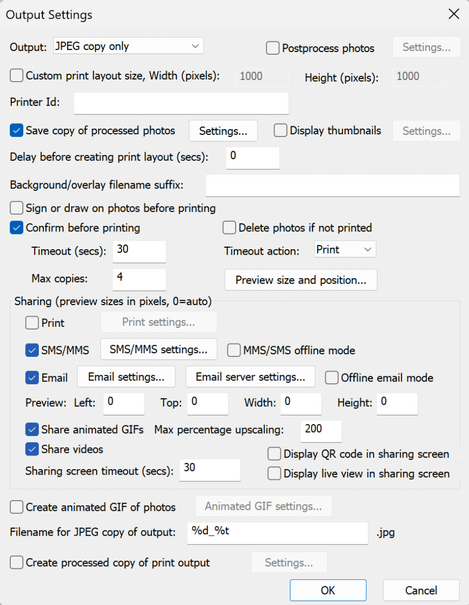
Click on the "Settings..." button to the right of the output options to display the output settings dialog which allows you to configure the print preview and how JPEG copies of the printed output are handled and to configure the sharing of photos by Twitter, text or email:
The "Output:" drop down list allows you to specify whether photos are printed only, printed with a JPEG copy of the layout saved in "prints" sub folder, a JPEG copy of the layout is saved in the "prints" sub folder without printing or no output action is taken. (This is the same as the "Output:" drop down list displayed in the main photo booth settings dialog).
Select "Postprocess photos" to allow photos to post processed by an external web site before they are added to the print layout. The post processing can be used to add AI image processing or to perform other actions such as running a Photoshop droplet on the photo. Click on the "Settings..." button to edit the settings (see Postprocessing Photos for details).
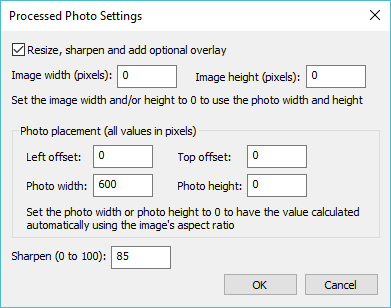
Select "Save copy of processed photos" to save a copy of each photo taken by the camera after it has been processed e.g. rotated, cropped, digitally zoomed, chroma-keyed, converted to B&W, toned or the Instagram style filter applied. The original unmodified image from the camera is saved in the download folder (specified in File->Preferences) and the copy of the processed image is saved in the "processed" subfolder. The processed image can be optionally resized, sharpened and an overlay added. To do this click on the "Processed photo settings..." to display the "Processed photos settings" dialog:
Select "Resize, sharpen and add optional overlay" checkbox to modify the processed image. The image width and height settings specify the size of the saved image. If these are set to zero the size of resized photo will be used. The photo width and photo height settings define the size of the resized photo. If one of the values is 0 the aspect ratio of photo will be used to calculate the value e.g. in the screenshot above the width is set to 600 and the height is set to 0 which will give a height of 400 for an uncropped photo in landscape orientation. The photo is only resized if the new size is smaller than the original. If the photo is offset within the image or the photo is resized so that it is smaller than the image the image background will be visible. This defaults to a white background but it can be replaced with an optional background image named processed_image_background.jpg. When using green screen or AI background removal with the transparent background option the background of the photo will use the greenscreen_background.jpg image if available.
An optional overlay can be added to the processed image by placing a PNG image named processed_photo_overlay.png in the photo booth images folder. If the overlay is larger than the processed photo it is resized to fit. If it is smaller than the photo it is placed in the center of the photo.
The photo can be sharpened before it is added to the image. The default sharpening is 85, set this to 0 if you do not require sharpening.
You can set the size of your print layout by using pixel dimensions (eg 1800 x 1200) instead of having to select a printer.When enabled, you can only save a digital copy of the layout. Support for printing via Breeze Hub will be coming in a future update to Hub.
The printer ID is used to specify which printer you can print to in Breeze Hub. Please note, full support for this feature is coming in a future update to Breeze Hub.
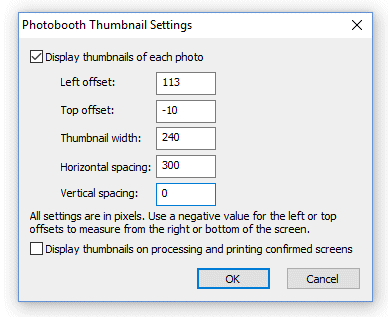
Select "Display thumbnails" to display a small thumbnail of each photo. The thumbnails can be arranged vertically down one side of the screen or horizontally across the top or bottom of the screen. Click on the "Settings..." button to
The left offset specifies the distance in pixels of the first thumbnail from the left edge of the screen. If a negative value is specified the distance will be measured from the right edge of the screen e.g. and value of -1 will place the first thumbnail on the right of the screen. The top offset specifies the distance in pixels of the first thumbnail from the top edge of the screen. If a negative value is specified the distance will be measured from the bottom edge of the screen e.g. and value of -1 will place the first thumbnail on the bottom of the screen. The thumbnail width specifies the width of the thumbnail in pixels (the height of the image will be calculated automatically using the aspect ratio of the photo). The horizontal and vertical spacings specify the positions of the remaining thumbnails relative to the first thumbnail. The settings in the screenshot above will place four thumbnails 240 pixels wide across the bottom of the screen and will be centered horizontally if the screen resolution is 1366 x 768. The default setting is to only display thumbnails during the photo booth countdowns when taking the photos and not to show them at the end of the shooting sequence on the processing or printing confirmed screens. Select the "Display thumbnails on processing and printing confirmed screens" if you also want the thumbnails to be displayed at the end of the shooting sequence when the processing or printing confirmed screens are displayed.
The "Delay before creating print layout (secs):" setting is normally set to 0 so that photos are printed as soon as possible. This setting is useful if the photos need to be modified by another program (e.g. by running a Photoshop droplet to edit the photos or using a green screen program to create high quality green screen photos) before they are printed by Remote Pro. Please see the section on "Modifying Photos Before Printing" for information on how to use this option.
The "Background/overlay filename suffix" setting provides a way to select different backgrounds and overlays for prints, slideshow GIFs and boomerang GIFs. This setting can use tokens to provide values that are read at run time e.g. random numbers or data entered in the survey screens. For example to add a randomly selected overlay to a print layout the "Background/overlay filename suffix" could be set to random{random,1,3}. The token {random,1,3} evaluates to a random number between 1 and 3 giving a randomly generated suffix. When preparing the print layout the software will look for an overlay named overlay_random1.png, overlay_random2.png or overlay_random3.png depending on the random number. If it can't find an overlay file with the filename suffix it will use the standard filename, overlay.png, instead.
Select the "Sign or draw on photos before printing" option if you want to allow users to draw on the print layout before it is printed. This option is useful for letting users sign their photos when running a magic mirror photo booth with a touchscreen. Please see the section on "Signing or Drawing on the Prints" for more information on using this setting.
Select "Confirm before printing" in the "Output Settings" dialog if you want to be able to decide whether to print the images or not (this is the same as the "Confirm before printing" checkbox displayed in the main photo booth settings dialog). When this option is selected the print layout will be displayed on the screen with "Print" and "Cancel" buttons in the top left hand corner. Users should click on the "Print" button (or press the Enter key or A key) to print the images or click on the "Cancel" button (or press the Esc or key or X key) to reject the prints and return to the ready screen. Users can also press the P key (or tap on the "Confirm printing (no JPEG copy)" touchscreen action) to print without copying the JPEG copy of the printed output to a separate folder. This is useful if you want to offer users the choice of printing only or printing and copying the output to a separate folder (e.g. copying to a folder on another computer running Breeze Kiosk).
Select the "Delete photos if not printed" checkbox to delete the original photos downloaded from the camera if the user chooses not to print.
The "Maximum number of copies" setting limits the maximum number of print copies the user is allowed to select. If the touchscreen input mode is selected and touchscreen actions for confirm or cancel printing are defined the "Print" and "Cancel" buttons will not be displayed. The touchscreen sensitive areas can be displayed using the confirm_printing.jpg screen image.`
Exporting the program settings to file
All the program settings can be saved to a Windows registry file either for backup purposes or when copying the settings from one PC to another. Select Tools->Export settings to file... to save the program settings to file. This will save the settings to a Windows .reg registry settings file. The settings can be copied back into Remote Pro by exiting Remote Pro and then double clicking on the .reg file in Windows File Explorer.
Important:
|