Photos can be processed as part of a web based POST Request, or via a local script (like a Photoshop Droplet or an Auto Hot Key script). This allows you to make your own custom processing that can run off your own servers or PC's.
Processed images can then be used in Print Layouts and Slideshow GIFs.
Enable Post Processing
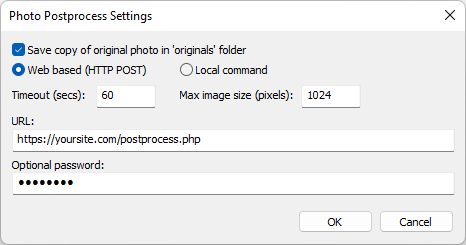
To enable the post processing of photos select "Postprocess photos" in the "Output Settings" dialog and then click on the "Settings..." button to adjust the settings:
Save Original
Enable "Save copy of original photo in 'originals' folder" to keep a copy of the original unmodified photo. Useful for displaying "before" and "after" images.
Note: The image sent to post processing will include any filters or crops applied.
Web Based Postprocessing
Choose this option to use web based services such as Breeze Fx or your own custom scripts to modify photos. This option requires an internet connection and works by uploading the photo to a web based service which applies some processing to the image and returns the modified photo.
Time Out
Enter a timeout to allow the web based service enough time to process the image and to provide a fallback if there are problems with the internet connection. If the postprocessing times out the original unmodified photo will be used in the print layout.
Max Size
Some AI image processing services only accept images up to a certain size. If this is the case set the "Max image size (pixels)" to the maximum size of the image that is uploaded. The image will be resized so that the height and width do not exceed the max image size setting before uploading the image. Set the max image size to 0 to disable the resizing of the image.
URL and Password
Enter the URL of the web service and the optional password or API key.
Technical Details
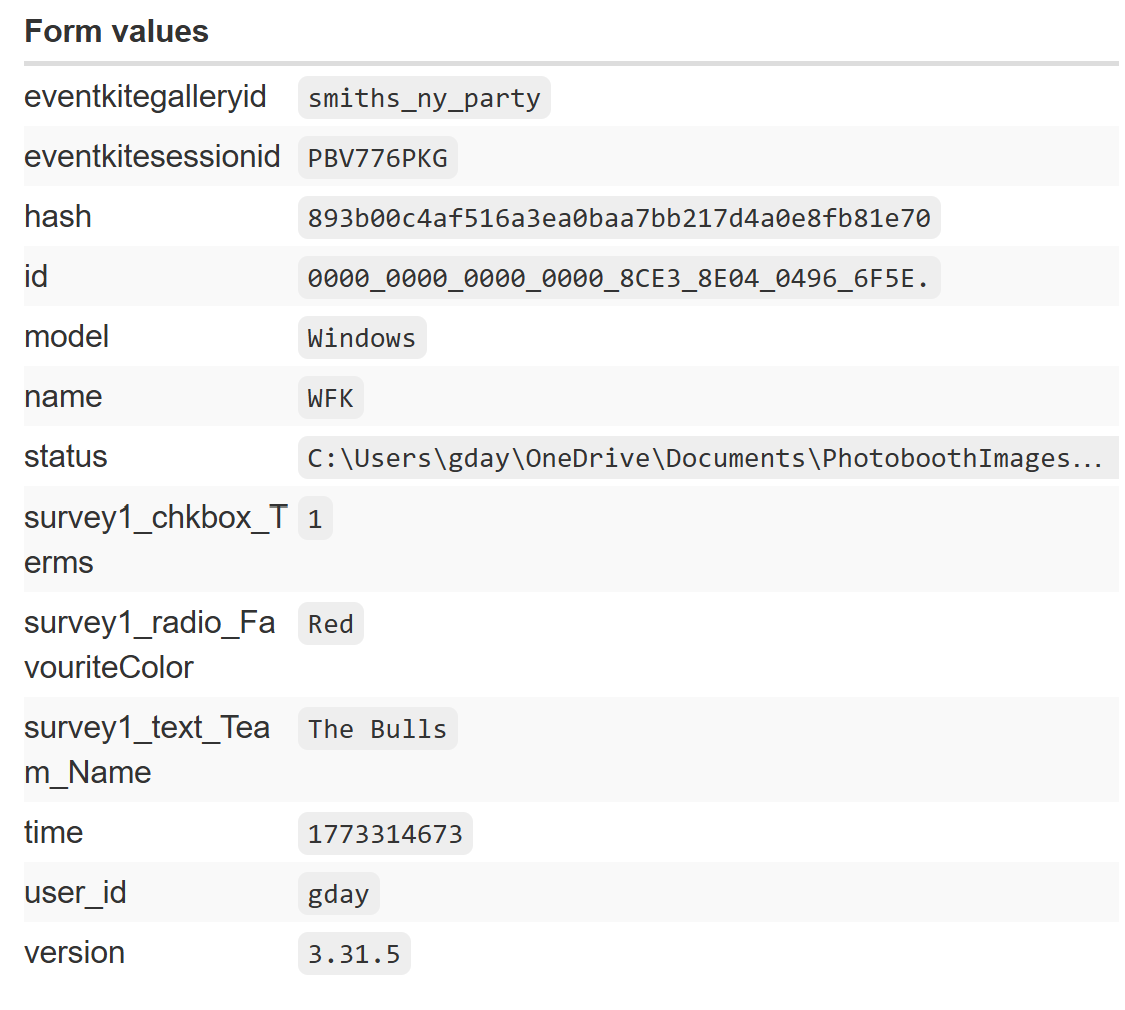
The photo is sent to the URL together with the any survey inputs and other data as a multi-part form using an HTTP POST. The image will be sent as JPEG data unless AI background removal with a transparent background is selected in which case it will be sent as a PNG image. The image data returned from the web server can be accepted as either and JPEG image or a PNG image. Use https://webhook.site/ to generate a test link. Paste this in into the POST Processing URL in Remote Pro to check the data that is received. An example is below:
Local Postprocessing
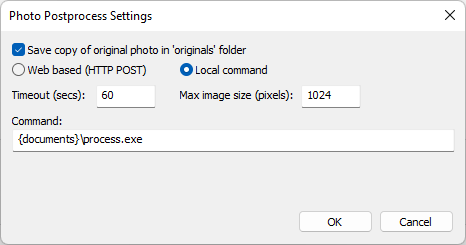
Select "Local command" to run a local command or a Photoshop droplet to modify the photos:
Time Out
Enter a timeout to allow the command enough time to process the image and to provide a fallback if there are problems running the command. If the postprocessing times out the original unmodified photo will be used in the print layout.
Max Size
The image can be resized before running the command by setting the "Max image size (pixels)" alternatively set this to 0 to disable the resizing of the image.
Command
Enter the command to be run to process the image. This can be a .exe. file such as a Photoshop droplet, an AutoHotKey script with a .ahk file extension or a batch file with a .bat or .cmd file extension. The command can contain tokens which allows the URL to be modified e.g. using the results of surveys.
Technical Details
The source image will be a JPEG image unless AI background removal with a transparent background is selected in which case it will be a PNG image. The command can save the images as a JPEG image which overwrites the source image or as a PNG image with the same filename as the source image but with a .png file extension.
|