MMS messages can be sent in the US and Canada using a web-based service called Twilio (www.twilio.com). In other countries the message can be sent as an SMS message with a link to the photo. Most cellphones should recognize the link as a link to a web server and open a web browser on the user's cellphone to view the photo. Please note that the image link in an SMS will only be valid for 7 days.
To use this service you need an account with Twilio and enter your Twilio account details in the MMS setting dialog. Twilio charge for each MMS or SMS message sent using their service. Please see their website for pricing information.
The maximum image file size that can be sent is 1 MB, but Twilio may resize the image file to conform to the cellphone service provider's size requirements.
When the user taps the MMS icon in the sharing screen a touchscreen keyboard will displayed to allow the user to enter their cellphone number. Please see the touchscreen keyboard section for information on how to customize its layout and appearance.
The MMS settings need to be setup so that the program can send the texts via Twilio. The "MMS Settings" dialog can be opened by clicking on the "SMS/MMS settings..." button in the "Output Settings" dialog. The "MMS Settings" dialog shown below will be displayed:
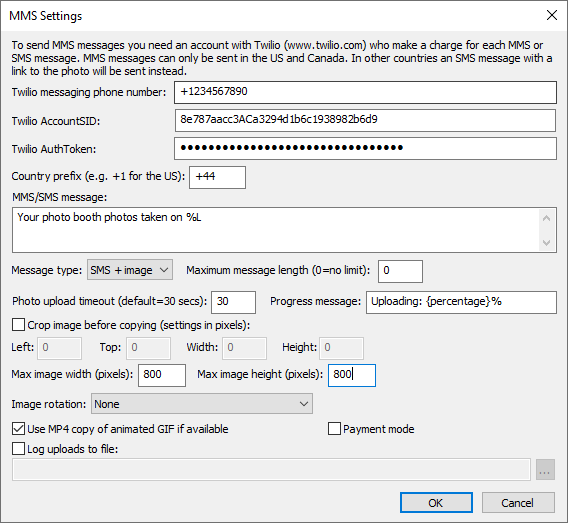
Enter your Twilio message phone number, AccountSID and AuthToken in the "MMS Settings" dialog. You can find your Twilio message phone number, AccountSID and AuthToken by logging into your Twilio account.
Set the country prefix to your country prefix e.g. +1 for the US and Canada, +44 for the UK, +49 for Germany etc. When users enter their cellphone numbers they can either enter the number with their country prefix e.g. +1234567890 or without it e.g. 23456789 and the country prefix will be added automatically before sending the text.
Select the message type from the "Message type:" dropdown list. The available options are:
1. |
MMS - send the message as an MMS with the image attached to the message. Currently Twilio only supports MMS messaging in the US and Canada. If this option is used in a country which doesn't support MMS messaging through Twilio the message will be sent as an SMS + image. |
2. |
SMS - send the message as an SMS. You will need to include a link to a website in the message text so that the user can view their photos e.g. http://mywebsite.com/photos/{fullFilename} |
3. |
SMS + image - send the message as an SMS with a link to the photo. The photo will only be available for viewing for 7 days. Use the {url} token to include the URL to the image in the text message. If the {url} token is not included in the message the URL will be appended to the end of the message. |
Photos sent using the "MMS" and "SMS + image" options must be no more than 1MB in size after resizing and cropping. An error message will be displayed if the 1MB file size limited is exceeded. Twilio may resize the photo to conform with the cellphone service operator's MMS size limits.
Photos sent using the "SMS + image" option will be hosted on the Breeze Systems' website for 7 days.
You can specify a maximum message length to ensure the 160 character SMS message length is not exceeded. In some countries SMS messages of more than 160 characters may be sent as multiple SMS messages and will cost more. In other countries the SMS message will be truncated to 160 characters.
You can crop, resize and rotate the photos before they are sent to the user.
To crop the image first check the "Crop image:" checkbox and then specify the left offset and top offset in pixels for the top left corner of the cropped image. Then specify the width and height of the image in pixels. For example if the photos are from a photo booth which is setup to print a double strip of 4 images on 6"x4" paper you may wish to crop the image so that only a single strip is emailed to the user. If the printer is set to a resolution of 300 dpi the image will be 1200 pixels wide (4" x 300 dpi) by 1800 pixels high (6" x 300 DPI) and so to crop it into a single strip you need to set left=0, top=0, width=600 and height=1800.
You can also specify a maximum size for the image being uploaded using the "Max width (pixels):" and "Max height (pixels):" settings. The JPEG copy of the printed output will be resized so that it is no bigger than these settings before it is emailed. Keeping these values relatively small, e.g. 500 x 500 pixels, will reduce the time it takes to send the email.
If required, the photo can be rotated using the "Image rotation:" dropdown list.
Please note that the image is cropped first, then resized and finally rotated before being sent to the user.
Select the "Use MP4 copy of animated GIF if available" option to enable the uploading of the MP4 copy of animated GIFs. Please see the animated GIF section for details of how to create animated GIFs.
GIFs and MP4 files will be sent without being resized or cropped.
You can specify a timeout for uploading the photo to prevent a slow or broken internet connection from jamming the photo booth.
From Remote Pro v3.16 onwards texts are sent in the background and users do not need to wait in the sharing screen for each text to be sent. When the users enters their phone number an XML copy of the text is saved and is added to the text sharing queue to be sent in the background. The XML copy of the text is saved in the same folder as the photos being texted and is given a filename prefix of text_YYYMMDD_hhmmss_. When a text is sent the status is saved to the text XML file.
Select "Payment mode" to enable the payment screens when texting from the sharing screen. When payment mode is enabled and the user selects text from the sharing screen and enters a valid phone number a payment screen named mms_payment.jpg is displayed. This is displayed until a timeout occurs or a "payment accepted" or "payment cancelled" touchscreen command is received. If the payment is accepted the photos are texted and the mms_success.jpg screen is displayed. If the timeout occurs or the payment is cancelled the mms_payment_cancelled.jpg screen is displayed for a few seconds before returning to the share screen. Please see the Payment Options section for more information.
By default the screens displayed when sending an MMS or SMS will have a simple status message shown on a black background. This can be overridden by placing the following JPEG screen images in the screen images folder:
mms.jpg - screen displayed when sending an MMS
mms_success.jpg - screen displayed after an MMS has been sent successfully
mms_as_sms.jpg - screen displayed in if MMS isn't supported and SMS is being used instead
mms_error.jpg - screen displayed if there is an error when sending an MMS
MMS/SMS "Offline Mode" and sending texts after an event
If no internet connection is available at an event you can disable the sending of texts and send them later when an internet connection is available. To do this you select the email "MMS/SMS Offline mode" option in the "Output Settings" dialog.
The texts can be sent when an internet connection is available by selecting "Send emails and MMS/SMS messages..." from the "File" menu in the main window:
Please see the section on sending offline emails for details.