Users can email photos directly from the photo booth if it has an internet connection and either a touchscreen or a keyboard to enter their email address. If an internet connection is not available at an event the email addresses can be saved and the emails sent later by selecting the offline email mode.
The simplest way to set this up is to use the photo booth setup wizard and then adjust the settings if required. After running the photo booth setup wizard the email settings can editing using the dialog below. This dialog can be opened by opening the "Photobooth Settings" dialog (File->Photobooth Settings... or Ctrl+S) then opening the "Output Settings" dialog clicking on the "Settings..." button to the right of the output options and then clicking on the email photo "Settings..." button.
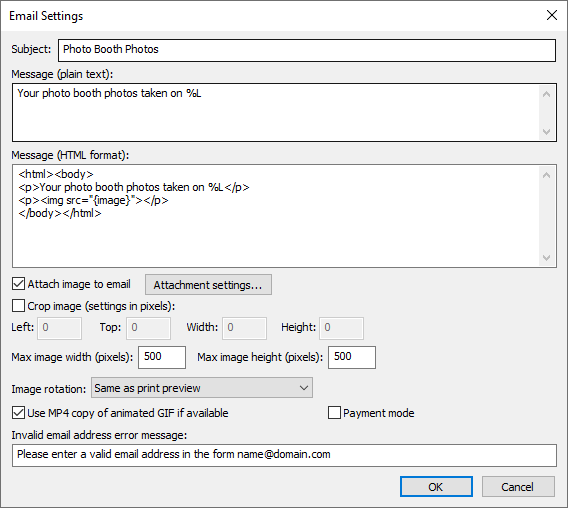
The "Subject:" text box defines the text in the subject line of the email.
The body text of the message can be specified in plain text or in HTML format to provide more control over its appearance. When using the HTML format the token {image} represents a link to the attachment of the photo to be emailed and can be used with HTML <img> tag e.g. <img src="{image}"> to display the photo in the email message. This can be combined with other tokens e.g. the following line could be used to embed a photo in the HTML message or display a message saying the video is attached to the email:
<p>{if,{isMovie},Your video is attached,<img src="{image}">}</p>
This evaluates to <p>Your video is attached</p> if the file is a movie file and to <p><img src="{image}"></p> if it is a JPEG or an animated GIF.
Please note: for backwards compatibility with older versions of Remote Pro the token [image] can be used instead of {image}. Please use one of the tokens listed in the Email Attachments section for new events.
JPEG images and animated GIFs will be embedded in the HTML message if it contains the a token referencing the image (e.g. {print_layout}) otherwise they will be attached to the email. Videos are always sent as attachments because most email clients don't support HTML 5 and cannot display embedded movie files.
Tokens for the date and time can be included in the email subject and message text fields and will be replaced with the date or time the photos were taken when they are uploaded e.g.
%L will be replaced with the long date representation for your computer's locale e.g. Wednesday, January 08, 2014
%l will be replaced with the long date and time representation for your computer's locale e.g. Wednesday, January 08, 2014 20:23:56
{sharingMessage} is replaced with contents of the second text entry field (if defined) in the touchscreen keyboard used for entering the user's email address. This allows the user to enter an optional message when emailing photos.
Please see the tokens section for a list of available tokens.
Select the "Attach image to email" option to send the photo, GIF or MP4 with the email as an attachment (this is the default option). If this option is disabled the image won't be attached to the email and you need to provide a link to a website where users can view their photos. For example you might use an FTP client to automatically upload the photos to your website and then provide a link to the photo in the email by replacing the line:
<p><img src="{image}"></p>
with something like this:
<p><img src="http://mywebsite.com/viewer.php?id={filename}"></p>
When sending photos the photo that is emailed is based on the JPEG copy of the printed output. You can crop, resize and rotate the image before it is emailed to the user.
To crop the image first check the "Crop image:" checkbox and then specify the left offset and top offset in pixels for the top left corner of the cropped image. Then specify the width and height of the image in pixels. For example if the photo booth is setup to print a double strip of 4 images on 6"x4" paper you may wish to crop the image so that only a single strip is emailed to the user. If the printer is set to a resolution of 300 dpi the image will be 1200 pixels wide (4" x 300 dpi) by 1800 pixles high (6" x 300 DPI) and so to crop it into a single strip you need to set left=0, top=0, width=600 and height=1800.
You can also specify a maximum size for the image being uploaded using the "Max width (pixels):" and "Max height (pixels):" settings. The JPEG copy of the printed output will be resized so that it is no bigger than these settings before it is emailed. Keeping these values relatively small, e.g. 500 x 500 pixels, will reduce the time it takes to send the email.
Depending on you printer page settings the JPEG copy of the printed output may not be saved in the correct orientation. If this is the case it can be rotated using the "Image rotation:" dropdown list. If you are also using print preview (the "Confirm before printing" option in the "Photobooth Settings" dialog) this can be set to "Same as print preview" and it will use the same rotation settings as the print preview.
Please note that the image is cropped first, then resized and finally rotated before being emailed to the user.
Select the "Use MP4 copy of animated GIF if available" option to enable the uploading of the MP4 copy of animated GIFs. Please see the animated GIF section for details of how to create animated GIFs.
GIFs and MP4 files will be sent without being resized or cropped.
Select "Payment mode" to enable the payment screens when emailing from the sharing screen. When payment mode is enabled and the user selects email from the sharing screen and enters a valid email address a payment screen named email_payment.jpg is displayed. This is displayed until a timeout occurs or a "payment accepted" or "payment cancelled" touchscreen command is received. If the payment is accepted the photos are emailed and the email_success.jpg screen is displayed. If the timeout occurs or the payment is cancelled the email_payment_cancelled.jpg screen is displayed for a few seconds before returning to the share screen. Please see the Payment Options section for more information.
Click on the "Attachment settings..." button to display the "Email Attachment Settings" dialog to specify additional email attachments:
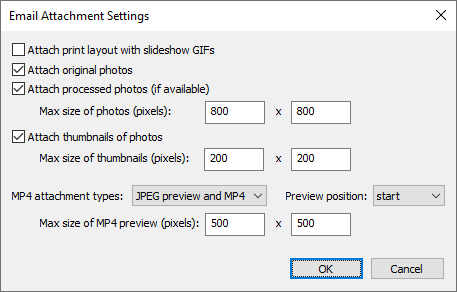
Select "Attach print layout with slideshow GIFs" to add an attachment for the JPEG copy of the print layout when emailing slideshow GIFs (or their MP4 copies). The size and cropping information in the email settings dialog is saved with the attachment information.
Select "Attach original photos" to add attachment information for the individual photos taken in stills photo booth mode. Select "Attach processed photos (if available)" to also include copies of the photos after they have been processed. Use the "Max size of photos (pixels)" settings to specify the maximum width and height of the photos.
Select "Attach thumbnails of photos" to add attachment information for thumbnails of the individual photos taken in stills photo booth mode. Use the "Max size of thumbnails (pixels)" settings to specify the maximum width and height of the thumbnails.
Select the types of attachments to be included when emailing MP4 videos. The options are: "MP4 only" which attaches the MP4 file to the email, "JPEG preview only" which extracts a preview image from the MP4 movie and attaches it to the email, "MP4 and JPEG preview" which attaches both the MP4 file and the JPEG preview to the email. Use the "Max size of MP4 preview (pixels)" settings to specify the maximum width and height of the JPEG preview extracted from the MP4 file.
Attachments for JPEG images (including preview created from MP4 videos) and GIF images can be embedded in HTML emails using the following tokens:
{print_layout} - the JPEG copy of the print layout
{photo<n>} - original individual photos e.g. {photo1}, {photo2} etc.
{thumbnail<n>} - individual thumbnails e.g. {thumbnail1}, {thumbnail2} etc.
{gif} - slideshow GIF or boomerang GIF
{video_preview} - JPEG preview of the video
When "Attach processed photos (if available)" is selected the token used for embedding the photos in the HTML email text will depend on whether "Attach original photos" is also selected. If "Attach original photos" is selected the token for the processed photos is {processed<n>} otherwise it is {photo<n>}.
To embed the print layout in the email message body you need to add something like this to the HTML message text:
<img src="{print_layout}">
To embed the first photo in the email message body you need select "Attach original photos" and to add something like this to the HTML message text:
<img src="{photo1}">
To embed the first processed photo in the email message body you need select "Attach processed photos (if available)" and to add something like this to the HTML message text:
<img src="{photo1}">
or <img src="{processed1}"> if "Attach original photos2 is also selected.
To embed a thumbnail of the first photo in the email message body you need select "Attach thumbnails of photos" and to add something like this to the HTML message text:
<img src="{thumbnail1}">
You can also the the {image} token followed by the attachment number e.g. {image} or {image1} for the first attachment, {image2} for the second attachment e.g.
<p>Attachment 1: <img src="{image1}"></p>
<p>Attachment 2: <img src="{image2}"></p>
If there is no corresponding token for the attachment in the HTML email text or if the attachment is a MP4 movie file it will be attached to the email and won't be embedded in the email text.
The email server settings also need to be setup so that the program can email the photos. The "Email Server Settings" dialog can be opened by selecting "Email Server Settings..." from the File menu or by clicking on the "Email server settings..." button in the "Output Settings" dialog. The "Email Server Settings" dialog shown below will be displayed:
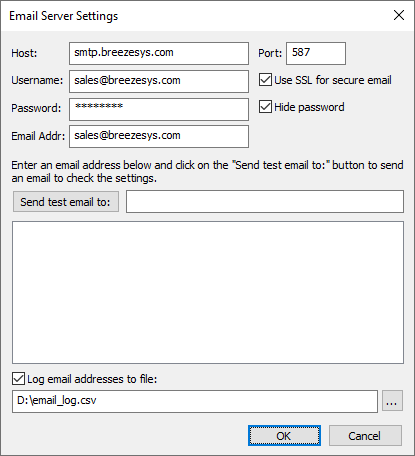
To send an email you need to specify the host name and port number of your email server. Most email servers also require a username and a password to prevent unauthorized users from sending spam emails. For additional security select the "Use SSL for secure email" option to send the email using SSL. The port number should normally be set to 465 or 587 when using SSL secure email or 25 otherwise (please check the port numbers used by your ISP).
Set the "Email addr:" to the sender's email address. To include the name of the sender with the email address enter it as the name followed by the email address enclosed in angle brackets e.g. "Acme Photo Booth <[email protected]>". Most free email services require the sender's email address to the be the same as that of the email account specified by the username and password.
The settings can be verified by sending a test email by entering the destination email address and then clicking on the "Send test email to:" button. The email status and any error messages will be displayed in the status area at the bottom of the dialog.
Select the "Log email addresses to file:" checkbox to log the email addresses to a CSV file. Then either type in the filename of the log file in the editbox or click on the "..." to open a file browser. The log file contains a line for each email containing the following comma separated values: the date in the format YYYYMMDD, the time in the format HHMMSS, the email address, the status (1=success, 0=failure) and the filename of the image file e.g.
20140114,174842,[email protected],1,C:\Users\Chris\Documents\PhotoboothImages\2014-01-14\prints\140114_174826.jpg
In spring 2020 Google withdrew support for standard SMTP emails and replaced it with a more secure service linked to your Google account. Remote Pro v3.15 has received app approval from Google which allows it to send emails using this new secure method. To use GMail to send emails you need to authorize it with your Google account. To do this first set the "Host" to GMail and then click on the "GMail authenticate..." button. This will open a web browser window guiding you through the acceptance process. If the PC has already been authenticated pressing the "GmaiL authenticate..." button will refresh the GMail access token and display its status.
If you decide to stop allowing Remote Pro to send emails using GMail you can revoke its access by logging in to your Google account and going to the Security settings and "Third-party apps with account access". You should see an entry for Breeze Booth which you can click on to review its access. If you decide to remove access this will prevent all copies of Remote Pro from sending emails using GMail and you will need to re-authenticate them if you to use GMail on them again.
Remote Pro only has permission to send emails on your behalf using GMail. It is not able to read, modify or delete your emails and does not have access to any other Google services you may use.
Switching to a different GMail account: The GMail email account used to send the emails can be changed by signing into the Google account settings for the current account using a web browser and removing access for Breeze Booth in the security settings. Then re-authenticate in Remote Pro and select the new account.
Please note: Google limit the number of emails that can be sent from a GMail account to 500 emails in a 24 hour period which may not be enough if you are running several photo booths. If this is a problem please consider using a dedicated email service such as sendgrid.com.
In Operation
Breeze Hub is free and is included included with the Breeze Booth for iPad Event Editor which can be downloaded from https://www.breezesys.com/support
When the photo booth is run and the photos have been taken the print preview screen will be displayed first (if "Confirm before printing" is selected) and then when the user selects "Print" the sharing screen (share.jpg) will be displayed. If the user selects "Cancel" in the print preview screen the sharing screen won't be displayed and the booth will return to the ready screen (ready.jpg). If the "Confirm before printing" option is not selected the sharing screen will be displayed after taking the photos.
When the sharing screen (share.jpg) the user has the option to email the photo by touching the email button on the touchscreen or by typing E if they are using a normal keyboard. The sharing screen can be exited by touching the "Cancel" button on the touchscreen or by typing X or Esc on a normal keyboard. The sharing screen will also exit automatically if the user does nothing and the screen timeout occurs. The sharing screen timeout can be specified in the "Output Settings" dialog.
When the user selects email photo the touchscreen keyboard will be displayed allowing them to enter the email address. The user can enter the email address by tapping on the touchscreen keyboard or by typing it in using a normal keyboard. The user can then either tap on the "Cancel" button (or type Esc) to cancel the email or tap on the "Send email" button (or press the keyboard Enter key) to start the upload. The touchscreen keyboard will cancel automatically if the user doesn't tap the touchscreen or type anything and the keyboard timeout occurs. The keyboard timeout can be specified in the "Touchscreen Settings" dialog which can be displayed from the "Photobooth Settings" dialog.
The "To" email address is read from the first email text field defined in the touchscreen keyboard. If additional email text fields are found they are added as CC addresses. Please see touchscreen keyboard page for more information and an example of how to add a CC text field to the email keyboard.
When the user has entered their email address and selected "Send email" the email upload screen (email_photo.jpg) will be displayed and the photo will be placed in the email queue and the email success screen (email_success.jpg) will be displayed for a few seconds and then the screen will return to the sharing screen.
The sharing screen can also be displayed from the ready screen using the keyboard shortcut Shift+Ctrl+S or the "Display sharing screen" touchscreen action.
From Remote Pro v3.16 onwards emails are sent in the background and users do not need to wait in the sharing screen for each email to be sent. When the users enters their email address an XML copy of the email is saved and is added to the email queue to be sent in the background. The XML copy of the email is saved in the same folder as the photos being emailed and is given a filename prefix of email_YYYMMDD_hhmmss_. When an email is sent the status is saved to the XML email file.
Email "Offline Mode" and sending emails after an event
If no internet connection is available at an event you can disable the sending of emails and send them later when an internet connection is available. To do this you select the email "Offline email mode" option in the "Output Settings" dialog.
The emails can be sent when an internet connection is available by selecting "Send emails and MMS/SMS messages..." from the "File" menu in the main window:
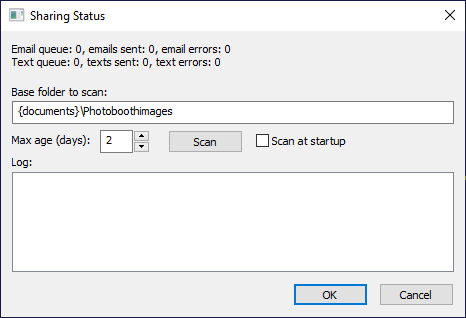
The first two lines in the "Sharing Status" dialog show the status of the email and text message queues. This will display all emails and texts queued since the app was run. If you exit Remote Pro and restart it the queues will be empty.
Enter the base folder where the photos are stored (e.g. {documents}\PhotoboothImages) and press the "Scan" button to add unsent email and text messages to the sharing queue. This will scan the base folder and all its subfolders looking for email and text XML files that have not been sent. If it finds messages that have not been sent it will ask whether you would like to add them to the sharing queue.
You can limit the age of the messages included in the scan by setting the "Max age (days)" setting. This is useful if you have old events in your photo booth images folder and don't want old messages to be sent.
Select the "Scan at startup" option to automatically scan for unsent messages each time Remote Pro is run.
The offline mode setting is not saved in the XML settings files when using profiles, but the setting can be changed when loading profiles by adding one of the following lines to the XML settings file:
Enable offline mode:
<photoboothEmailOfflineModeSetting>1</photoboothEmailOfflineModeSetting>
Disable offline mode:
<photoboothEmailOfflineModeSetting>0</photoboothEmailOfflineModeSetting>